
How to upload files via the cPanel FileManager?

If you don't want to use a 3rd party FTP Software, you can use the cPanel's inbuilt File Manager.

1. Log into your cPanel account.
2. In the "Files" section, click on the "File Manger" Icon.

 

3. cPanel File Manager will be open.

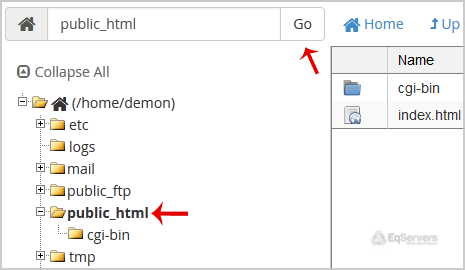
4. Navigate to the directory where you want to upload your files to. For example, should you wish to upload your file to the public html folder, you need to go to /public_html first. On the left side you can see a list of directories. Double Click on the "public_html" folder.

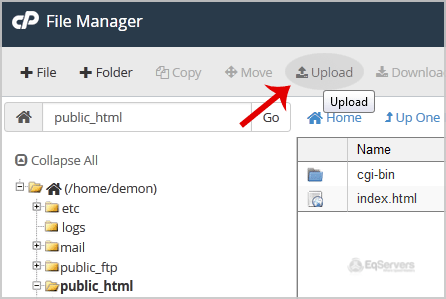
5. Now click on the "Upload" icon.

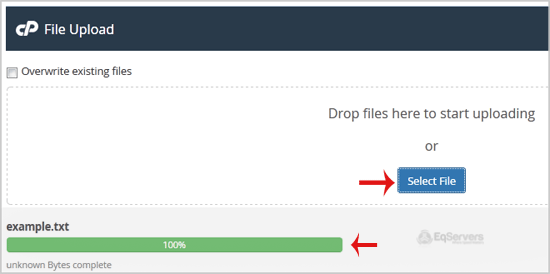
6. Click on the "Select File" button and select the file you want to upload from your PC. After you have select the file, the upload process will begin automatically.
  • 33 gebruikers vonden dit artikel nuttig
Was dit antwoord nuttig?

Gerelateerde artikelen

Becoming Familiar And Navigating Around in CPanel

Lets learn about cPanel, and how to navigate it's many pages and functions. Making sure that your...

How to Change Your cPanel Password

This tutorial will teach you how to change your cPanel password. Please remember to make your...

How To Change Your cPanel Style

This tutorial will teach how to change your cPanel style. cPanel comes in a variety of styles and...

How to Keep Your cPanel Contact Information Up To Date

This tutorial will teach you how to keep your contact information up to date in cPanel. It is...

How to Login to cPanel

Before you can log into cPanel, you must open your Internet browser. This will work in whatever...